
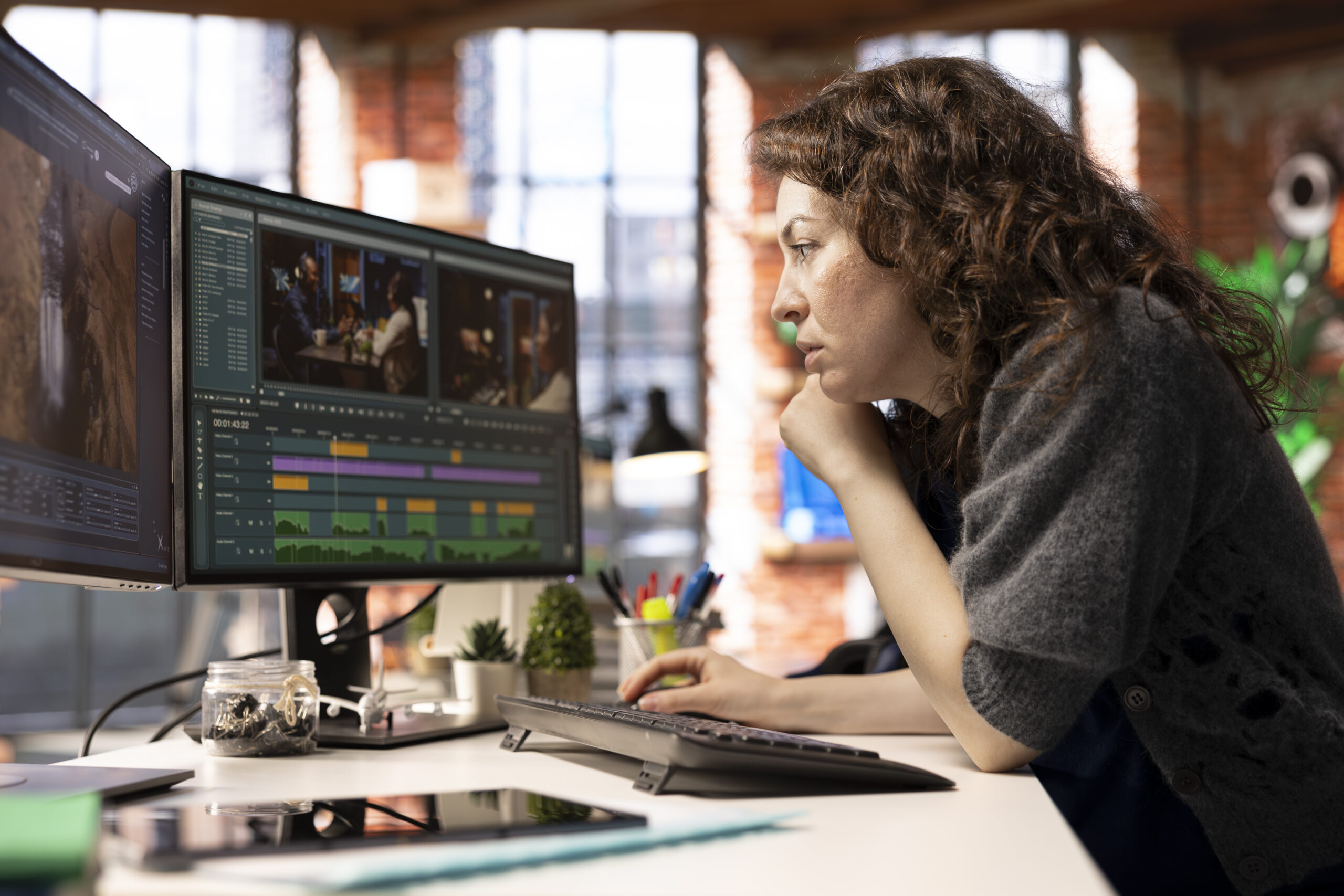
One of the most powerful, and watched-after, methods of video editing nowadays is the DaVinci video editing. It is used by numerous creators, freelancers, YouTubers, and filmmakers to create high-quality content. DaVinci Resolve can be the most appropriate option when you do not want to use money to buy expensive software to create professional videos. It provides an online platform that provides high-quality editing, color and audio mixes and visual effects. Also, it offers a free version, which is strong enough to be used by the vast majority of users. This is the full-fledged guide to get to know all about DaVinci video editing in plain words.
What Is DaVinci Resolved?
DaVinci Resolve is an editing software that is created by Blackmagic design to enable professional video editing. Initially, it was primarily employed in color correction of color in Hollywood films. But with time, it evolved to be a complete video editing solution.
Currently, it is used by the content creators to:
- YouTube videos
- Short films
- Documentaries
- Corporate videos
- Social media reels
- Advertisements
Above all, it is integrated to enable one software to edit, grade colors, effects, and audio. It is thus that you need not have separate tools.
Why would you prefer DaVinci Video Editing?
Different editing tools can be found. As an illustration, there are creators who employ Adobe Premiere Pro and some employ Final Cut Pro. But there are a number of strengths of DaVinci Resolve.
Free Version Available
To begin with, the free version is more powerful. It is possible to edit 4K videos without a watermark. Therefore, the novices can commence without investment.
Professional Color Grading
DaVinci Resolve is known to have tools of color grading. Indeed, lots of Hollywood film production corrects the color by it.
All-in-One Software
You do not need to go in between various programs but can do everything under one roof:
- Edit videos
- Add effects
- Adjust color
- Edit audio
Consequently, your workflow will be accelerated.
One-Time Purchase Option
In contrast to subscription software, the Studio version has to be paid one time. Thus, you save money in the long-run.
DaVinci Video Editing System Requirements.
You must check your computer before you begin.
Minimum Requirements
- the computer figuration must be windows 10 or macOS 11 or later.
- 16GB RAM (8GB for simple projects)
- Dedicated GPU (recommended)
- SSD storage
Your editing can also be slow, in case your PC is slow. Thus, it can be upgraded by using RAM and SSD.
Explaining DaVinci Resolve Interface.
When you open DaVinci Resolve you will find various pages displayed on the bottom. There is a special purpose on every page.
Media Page
In this case, you bring in your video files, audio and pictures.
Cut Page
This page has been created to be easily edited. It is simple and fast.
Edit Page
This is the working environment. Most beginners use this page.
Fusion Page
Selective visual effects can be developed here.
Color Page
Professional color grading is done on this page.
Fairlight Page
On this page you can do audio editing and improve it.
Deliver Page
At last, you ship your video out of here.
Everything is arranged in pages, hence making the workflow transparent and easy.
Introduction to DaVinci Video Editing (Steps).
At this point, we can also get to know how to edit your first video.
Step 1: Create a New Project
- Open DaVinci Resolve
- Click “New Project”
- Name your project
Step 2: Import Media
Go to the Media page. Drag your files in the Media pool then.
Step 3: Add Clips to Timeline
- Go to the Edit page
- arrange your footage in line with the appropriate timeline.
Now your editing starts.
Step 4: Cut and Trim Clips
A blade tool is used to cut clips. Edges can also be dragged in order to trim.
Step 5: Add Transitions
Click Effects Library. sliding shot footage between the clips
Step 6: Add Text
picked Titles of the Effects Library. inserting appropriate text title in the timeline. Then edit the text.
Step 7: Add Music
Import background music. Position music on the video track.
Step 8: Export Video
Go to the Deliver page. Choose a YouTube preset. Click Render.
Now your video is ready.
Significant DaVinci Video Editing Tools.
You should know some important tools to edit in a natural manner.
Blade Tool
It helps you cut clips easily.
Selection Tool
You use it to move clips.
Zoom Tool
It assists in enlarging the timeline.
Inspector Panel
You can adjust:
- Position
- Scale
- Rotation
- Opacity
Due to such tools, editing becomes adaptable.
Color Grading of DaVinci Video editing.
One of the most powerful features of DaVinci Resolve is to grade colors.
Basic Color Correction
First, go to the Color page.
Then adjust:
- Lift (shadows)
- Gamma (midtones)
- Gain (highlights)
Contrast and saturation can also be applied.
Using LUTs
LUT means Look-Up Table. It is highly changeable in terms of color style.
However, do not overuse LUTs. Rather, implement minor changes.
Nodes System
Instead of using layers, DaVinci uses nodes. Each node adds a correction.
Thus you have easy control of your colour work.
In DaVinci video editing, audio editing is provided.
A good video needs good sound. Audio editing is therefore of great importance.
Go to the Fairlight page.
You can:
- Reduce background noise
- Adjust volume
- Add sound effects
- Add fade in and fade out
What is more, you may apply equalizer (EQ) to enhance voice clarity.
Fusion Effects Advanced Editing
Fusion is for visual effects.
For example, you can:
- Add green screen effect
- Create motion graphics
- Add tracking effects
But initially Fusion might appear difficult. As such, simple effects should be used by beginners.
YouTube Export Settings Best setups.
In case you make YouTube videos, use the following settings:
- Format: MP4
- Resolution: 1920×1080
- Frame Rate: 24fps or 30fps
- Quality: Restrict to 10,000–20,000 kb/s
Quick export You may also use the YouTube preset.
This article lists the pitfalls in the DaVinci video editing.
Novices are prone to making mistakes. However, you can avoid them.
Using Too Many Effects
Video is too messy with too many effects.
Ignoring Audio Quality
Poor sound quality lowers the quality of the video.
Wrong Export Settings
Checking resolution and frame rate is always important.
No Backup
Save your project regularly.
DaVinci Video Editing to become a freelancer.
You are keen on digital skills and freelancing so that DaVinci video editing can assist to make money online.
By using DaVinci video editing software anyone can offer services like::
- YouTube video editing
- Social media reels editing
- Short ads editing
- Color grading services
You can work on:
- Freelance marketplaces
- Direct clients
- Local businesses
Due to the increased video content, there is high demand.
Learning how to edit videos in a faster way is the best way to learn DaVinci video editing.
Studying is not hard as long as you have a plan.
Practice Daily
Even 1 hour daily helps.
Watch Tutorials
On YouTube, there are numerous free tutorials.
Edit Real Projects
Practice with real footage.
Recreate Popular Videos
Try to copy the editing style.
This way, you improve faster.
Speedy Editing Keyboard Shortcuts.
Using shortcuts saves time.
Some important shortcuts:
- Ctrl + B – Cut clip
- Ctrl + Z – Undo
- Ctrl + S – Save
- I – Mark In
- O – Mark Out
That is why, short cuts in practice every day.
DaVinci resolver free vs. studio version.
Both versions are powerful. Nevertheless, there are certain differences.
Free Version
4K editing
Basic effects
Color grading
Studio Version
Advanced noise reduction
HDR tools
More effects
8K support
The free version suffices, in case you are a beginner.
Frequently Asked Questions
is it possible to obtain DaVinci Resolve in a genuine version of free?
Yes, the free version can be completely used when it comes to most projects.
Is it superior to Premiere Pro?
It depends on your needs. DaVinci is, however, more graded in color.
Can a low-end PC run it?
Yes, it may slow the performance of your PC.
Is it good for YouTube?
Yes, it is being used by numerous YouTubers every day.
Final Thoughts
The DaVinci video editing is an active and full-fledged solution to the contemporary creators. It provides non-expensive professional tools. In addition, it serves both the novice and high-end users simultaneously. DaVinci Resolve is a good option, in case you plan to become a video editor, freelancer, or even a content creator. Start with the free version. Practice daily. Learn step by step. You will learn to edit, color grade and production of audio in the long run.
This is high time to begin your trip to Da Vinci video editing.
